Where your audience buys your tickets.
Scan tickets
Scan tickets quickly and reliably at the entrance with your smartphone or an external scanner.
- Fast QR scanning
- Real-time synchronisation
- Live overview of checked-in vs. pending
- Supports multiple entrances
- Handy web app, no installation required
- Shareable link for scanners, no app downloads
At the door
- Fault tolerant
- Duplicate scans are flagged instantly to prevent fraud.
- Live overview
- Track entry progress in real time.
- No pricey hardware
- Use your own device or rent scanners when needed.
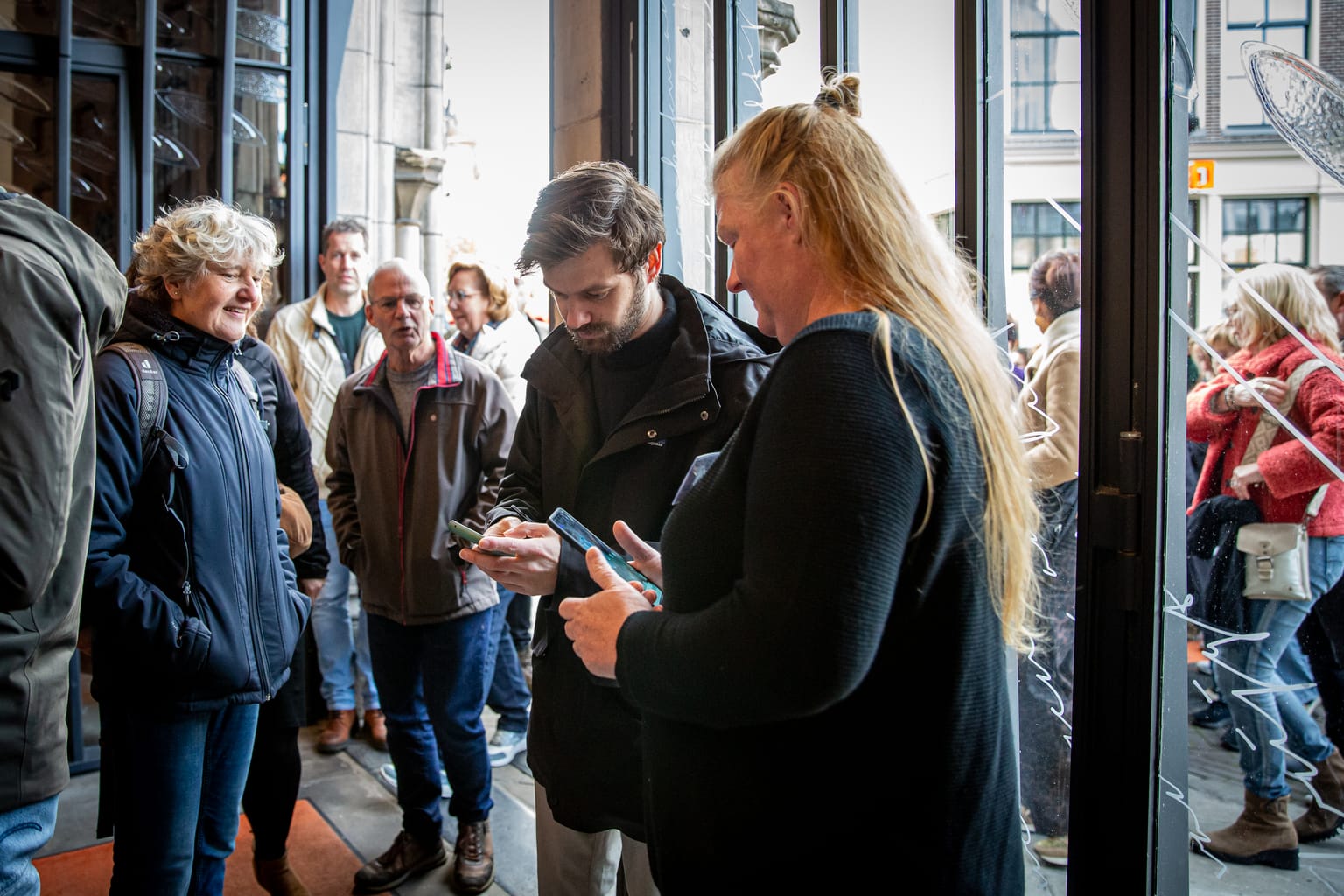
Check in visitors quickly and easily
Everything you need to scan tickets and let visitors in smoothly.
- Scan tickets with your phone
- Support for handheld scanners
- Clear guest list
- Export guests to Excel
- Sell tickets at the door
How check-in works on the day
Before the event, you connect the phones or tablets that will stand at the entrance. In your dashboard, go to Scannen and add a scanner. Whoever is scanning points the device's camera at the QR code and gives it a name, such as "North entrance". To control which tickets each entrance accepts, create a scan profile: the VIP entrance takes only VIP tickets, the main entrance takes the rest. A time window makes sure a ticket for tomorrow cannot be scanned today.
At the door, point the camera at the ticket's QR code. The screen turns green when the ticket is valid and now checked in. Orange means the ticket was already used, was cancelled, or does not belong to this entrance or time slot. Red means the code is not recognised as a Tickable ticket. The activity, ticket type and time slot appear under the message, so you can see straight away what is going on. When a group arrives on one order, you can set the scanner to show the whole order for that activity and check everyone in with a single tap.
For a busy entrance, you can also connect a USB or Bluetooth scanner that reads QR codes to a laptop, using the USB Scanner page in your dashboard. Afterwards, your activity shows how many tickets were checked in, and each order shows when every ticket came through the door.
Try Tickable for free
Create an account, set up your first activity, and publish a free test ticket. No obligations, discover how quickly you can go live.
Organisers already selling with Tickable
- organisers in the Netherlands and Belgium
- 640+
- tickets issued
- 260,000+
- in tickets sold
- €3.9M
- events with paid tickets
- 1,900+
 Theater FloralisTheatre, Lisse
 Cultuurhuis De KeizerCultural centre, Lichtervelde
 LUVClub, Breda
 Flightdeck FestivalFestival, Haarlem
 GreijdanusSchool, Zwolle
 MeezingMatthäusSing-along concert, Utrecht
 Rugbyclub Hoek van HollandSports club, Hoek van Holland
 HaagsPianoHuisSalon concerts, Den Haag
 DiscocoParty nights, Rotterdam
 Lef musicalschoolMusical school, Zwolle
 Nationaal VlechtmuseumMuseum, Noordwolde
 DracoonTrade fair, Zaltbommel
 Theater SprookTheatre, Deventer
 Heij! FestivalFestival, Linne
 De WerkmanszonenBrass band, Riemst
 DES Nieuw-DijkMarquee festival, Didam
 C.V. de KuussegattersCarnival society, Veghel
 Dance YardDance school, Almere
 Culture Club OostConcert stage, Bathmen
 Popkoor NoizPop choir
 D'n TrefferVillage association, Kerkwijk
 2NITE EventsParty nights, Enter
 Bruiss FestivalFestival, Sneek
 NTR ZaterdagMatineeConcert series
 Rechts van het MiddenImprov theatre
 Harmonie Ons VerlangenWind band, Bilzen
 Oranje Commissie MunnekezijlKing's Day festival, Munnekezijl
 ZPSSwimming and water polo club, Stolwijk
 Theaterkoor MarcelloTheatre choir, Montfoort
 DansrijckDance school
 RS DanceshowDance show, Enkhuizen
 de KunstweideArt studio, Haarlem
 Openluchttheater VeldenOpen-air theatre, Velden
 s.v. OBWSports club, Zevenaar
 BreebizaFestival, Maasbree
 Schutterij St. RochusShooting guild, Stevensweert